
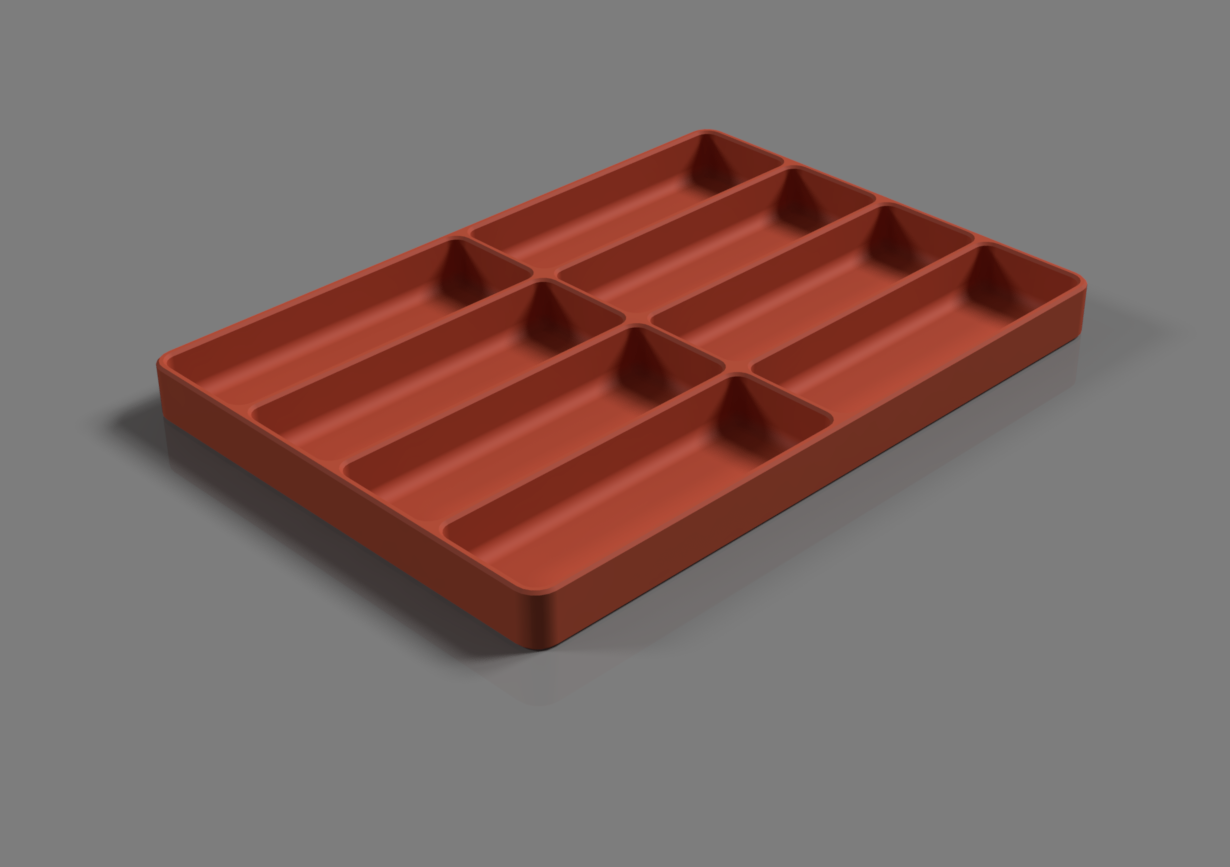
Parametric Organization Tray (Fusion 360)
- Arrives in 2 to 7 business days Printed in Auckland. $10 shipping, free over $75
- 14-day faulty refund If it arrives broken or misprinted, we reprint or refund it
- Secure checkout Card payments handled by Stripe
- Material
- High-Detail Resin (8K)
- Colour
- Grey
- Weight
- ~28 g
- Print time
- ~1.5 h
- Express shipping
- $20
More information
Everyone needs divider trays for sorting and organizing, but stock trays are rarely the perfect size with the perfect compartment sizes for your needs. Parametrically designed models allow for automated designing and easy customization!
First of all, you're going to need Autodesk Fusion 360 to modify the Parameters of this design. It is very easy to use, there are a ton of tutorials available on YouTube, it can be downloaded free for personal use and it is very powerful. There are many options for CAD software, but I believe Fusion 360 is the perfect blend of power and ease of use. I've often found that when people start with something like TinkerCAD or SketchUp, by the time they've put the time in to get proficient, they have found the upper limits of the software's capability and should switch anyway. Fusion 360 is perfect for prismatic forms & assemblies, common in engineering & product design, however it is not ideal for organic models, complex textures or complex meshes.
Download Fusion 360 here.
Once you've downloaded Fusion 360, download the supplied .f3d file, open the “Data Panel” and select "Upload":
Select the “Parametric Organization Tray” file from wherever you saved it, and Upload it:
Open the “Parametric Organization Tray” model and your screen should look something like this:
Go to the “Modify” tab and select “Change Parameters” to open the “Parameters” menu. Alternatively, you can use the hotkey “S” and type “Change Parameters” into the search bar:
Using the “Parameters" menu, you can select values and change them to a valid value. While any Parameter can be changed, the “Favorites” values are the most important. Adjust Compartment_Width, Compartment_Length, Columns, Rows and Overall Height. If you are concerned about overall length and width dimensions, they are displayed further down in the dialogue box as "External_Width and External_Length:
After you've adjusted values, you can double click the model and select “Save As Mesh”:
In the “Save As Mesh” dialogue box, select Format (STL Binary or 3MF are most common), Unit Type (Whatever you prefer, but millimeter tends to work best) and Refinement (High):
From there, just bring the mesh into your desired slicer, use your settings and print!
I've included a file called “Parametric Organization Tray Sample” so you can download it inspect it. This sample has these parameters:
Compartment_Width: 12mm
Compartment_Height: 25mm
Columns: 3
Rows: 2
Overall Height: 8mm
If you Would like to send a tip:
Venmo: @Dave-Sauvageau
Paypal: [email protected]
Design and description by davemoneysign , licensed CC-BY.
Frequently asked
How long does shipping take?
Parametric Organization Tray (Fusion 360) is printed to order. Lead time is typically 1-3 business days plus 1-4 days NZ shipping. Standard NZ shipping is $10, free over $75.
What material is this printed in?
By default this is printed in High-Detail Resin (8K) at 0.025 mm layer height on an MSLA resin printer. Custom material and colour swaps are available, just leave a note at checkout.
Can I get this in a different colour?
Yes. Every product can be printed in any of the resin colours we stock, or hand-painted on request. Leave a note at checkout or email [email protected].
Do you ship outside of New Zealand?
Currently New Zealand only. Australian shipping is coming.
Who designed this?
Designed by an independent sculptor and licensed for commercial printing. The original is linked on this page.
![Stackable gridfinity storage basket [PARAMETRIC]](/cdn/51db84ac-b7f8-4642-b6e3-2a1d12d0472a/images/10077963_4a63a7ec-ee44-40ca-b8bc-8cebb4d0f3f1_b9bf23c4-3a02-4923-84ff-f6a4bc110bb8/3_2_4_grid_withbins.jpg)